
 By Alpit Patel and the aibrevo team · September 16, 2026 · Updated September 18, 2026 · 20 min read
GoHighLevel Google Calendar Not Syncing: Causes and Fixes
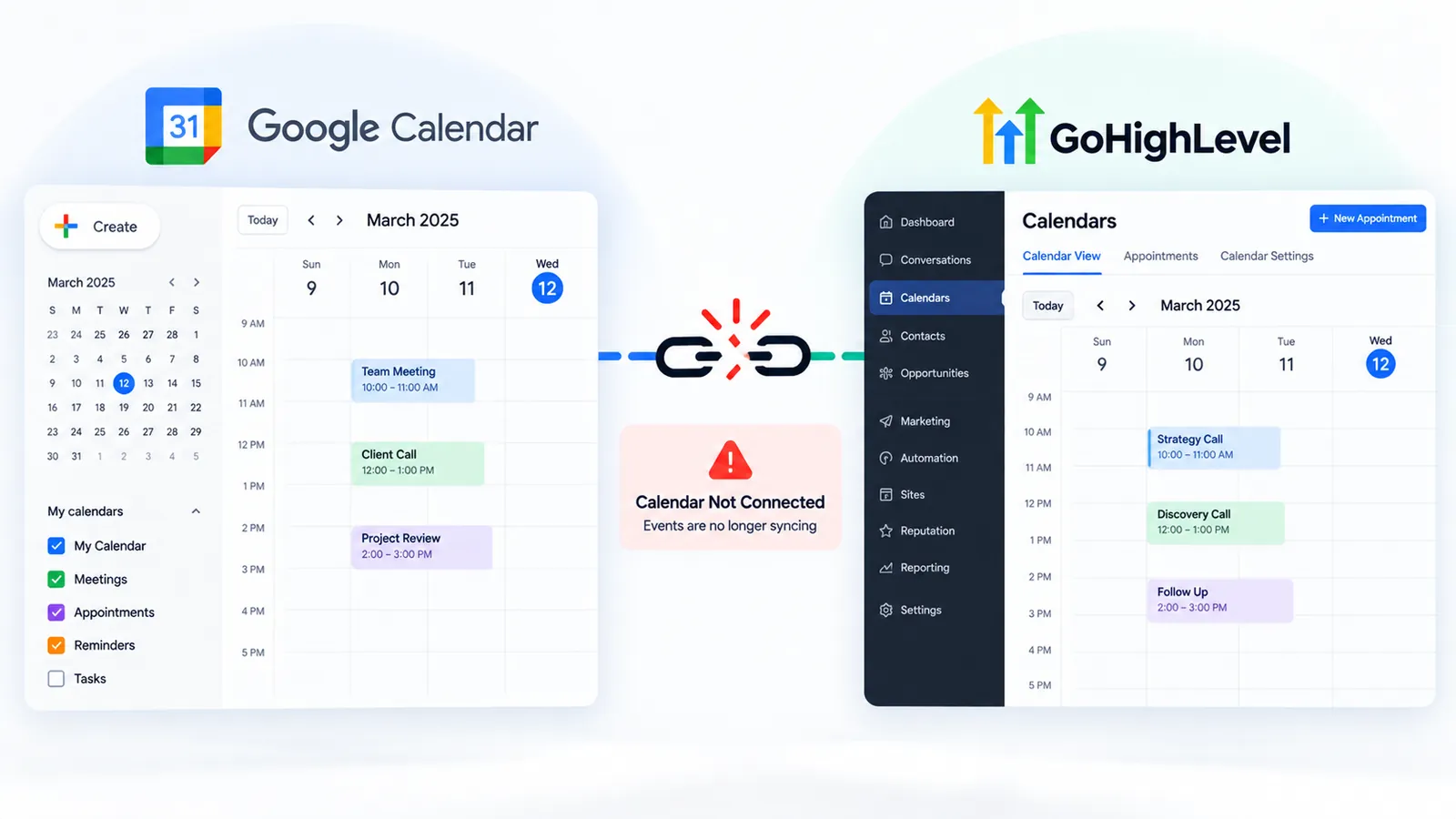
Why a GoHighLevel calendar connected to Google Calendar stops syncing or shows conflicting availability, the most common causes, and how to fix each one, including choosing one-way vs two-way sync.
Key takeaways
- The most common root cause of a broken Google Calendar sync is an expired or revoked OAuth token, not a bug in GoHighLevel itself: the fix is disconnecting and reconnecting the calendar under the correct Google account with full writer access granted.
- GoHighLevel's own integration docs (updated May 8, 2026) describe the base connection as two-way and explicitly warn that failing to grant Google's 'writer' permission scope during setup causes sync issues later, even though the connection looks successful at the time.
- GoHighLevel's calendar model as of July 2026 runs on three layers, Connected, Linked, and Conflict calendars, not a single on/off sync switch, and most 'sync is broken' tickets trace back to one of those layers being misconfigured rather than the connection itself failing.
- Duplicate or 'ghost' events almost always trace back to a calendar being connected under two different GoHighLevel users, write-back enabled on more than one calendar for the same person, or a sync mode change that wasn't followed by a manual resync.
- Timezone mismatches between a sub-account's default timezone and a Google Calendar's timezone setting create real double-bookings, not just display glitches, so both need to match before trusting the calendar for live bookings.
- Google's Calendar API caps usage at 600 requests per minute per user and 10,000 per minute per project; agencies running many sub-accounts through the same Google connection can hit these ceilings during bulk resyncs, which shows up as sync lag rather than an obvious error.
A GoHighLevel calendar that stops syncing with Google Calendar almost always traces back to one of a small number of causes: an expired OAuth token, a permission scope that never included write access, a calendar-type setting (Connected, Linked, or Conflict) that doesn’t match how the calendar is actually being used, a timezone mismatch, or a Google Calendar with write-back enabled from more than one place. None of these require rebuilding the calendar from scratch. Each has a specific, checkable fix, and the sync mode itself is a setup decision worth getting right the first time rather than troubleshooting after double-bookings reach real customers.
This guide walks through each cause in the order worth checking, explains the OAuth and calendar-type mechanics most competing troubleshooting articles skip, and covers how to choose between one-way and two-way sync for a given team setup.
If you’re setting up GoHighLevel more broadly and calendars are just one piece of the build, the complete agency setup guide covers sub-accounts, snapshots and workflow configuration around it, and the calendar and booking setup guide walks through building a calendar from scratch before sync becomes a concern.
1. Check connection status
Open Calendars > Calendar Settings > Connections and confirm Google Calendar shows as active rather than disconnected or authentication-error. An expired or revoked OAuth token is the single most common cause of a sync that just stops working.
2. Check the permission scope granted at connection time
Confirm the connection includes full calendar read/write ("writer") access, not just read-only. GoHighLevel's own integration docs warn directly that failing to grant writer access causes sync issues later, even when the connection itself looks fine.
3. Check sync mode and calendar type
Confirm whether the calendar is set to one-way or two-way sync, and separately whether the connected Google account is actually assigned as a Linked and Conflict calendar for the booking page in question. A calendar can be "connected" without being set to block availability at all.
4. Check timezone match
Compare the sub-account's default timezone against the connected Google Calendar's timezone setting. A mismatch produces real double-bookings, not just a display glitch, since a slot that looks open in one timezone can overlap an existing commitment in the other.
5. Check for duplicate write-back connections
Audit whether the same Google Calendar has write-back enabled from more than one GoHighLevel user or calendar at once. Duplicate write access is the usual source of duplicate or "ghost" events, and consolidating to one calendar per staff member clears most of it.
What’s the first thing to check: the OAuth connection?
The single most common reason a Google Calendar sync stops working is that the OAuth token connecting GoHighLevel to the Google account has expired or been revoked. This isn’t a GoHighLevel-specific quirk; it’s how OAuth-based integrations generally behave once a token is invalidated on the Google side, and Google’s own developer documentation lists the specific triggers rather than leaving it vague.
Per Google’s OAuth 2.0 documentation, a refresh token can stop working for several distinct reasons: the user revoked the app’s access, the refresh token went unused for six months, the user changed their password and the token included Gmail scopes, the user account exceeded its cap of granted refresh tokens, a time-limited grant expired, a Workspace admin restricted one of the requested scopes, or a Cloud-managed session-length policy was exceeded. Google also caps refresh tokens at 100 per Google Account per OAuth client ID; once a Google Workspace admin or a user has generated more than that against the same client, the oldest one is silently invalidated without any warning to the app using it. That last point matters for agencies: if a staff member has reconnected the same calendar repeatedly while troubleshooting something unrelated, they can burn through that cap and cause a previously-working connection to fail with no obvious trigger event.
Community-reported troubleshooting guides describe GoHighLevel-issued Google and Microsoft OAuth tokens as expiring on a roughly 90-day cycle by design, separate from any of the reasons above (ghlbuilds.com Smart Sync troubleshooting guide). That specific interval isn’t stated in GoHighLevel’s own published support docs as of this writing, so treat it as a community-observed pattern rather than a confirmed platform behavior, but it’s consistent with the general OAuth mechanics above and a reasonable explanation for sync breaking on a schedule with no obvious cause.
A few things commonly trigger a break. A Google account password change can invalidate existing app authorizations. A Google Workspace administrator can revoke third-party app access as part of a security review, which silently breaks the GoHighLevel connection without any notification inside GoHighLevel itself. And tokens can expire from the six-month inactivity rule even without any deliberate action, particularly on a calendar that isn’t used for very long stretches, such as a seasonal business’s booking calendar.
The fix is straightforward: open Calendars, then Calendar Settings, then the Connections tab inside GoHighLevel, disconnect the existing Google Calendar connection, and reconnect it, making sure to authenticate with the correct Google account and accept every permission Google’s consent screen lists. GoHighLevel’s own Google Calendar integration documentation (last modified May 8, 2026) covers the reconnection steps and states plainly that if any requested permission is declined during that flow, syncing may fail even though the connection appears to succeed. A red “Reconnect your integration” banner, or a calendar tile outlined in red, is the visual signal that the token has already expired or been revoked. Reconnecting generates a fresh token and, per GoHighLevel’s documentation, automatically pushes any appointments that were created while disconnected, so a reconnect doesn’t lose bookings made during the outage.
Can permission scope changes block the sync silently?
Yes, and this is a more common cause than most troubleshooting guides acknowledge. GoHighLevel’s Google Calendar connection requests three specific things: calendar read/write access, profile access, and email access, according to its own integration documentation. The same doc is explicit that “writer” access specifically, not just read access, is required to avoid sync issues. If a user only grants read-only access during the initial connection, or if Google’s own consent flow presents the permissions in a way that lets someone deselect the write scope, events can read into GoHighLevel but never write back out, which looks identical to a one-way sync even if two-way was intended.
The way to check this is to disconnect the calendar and reconnect it, paying close attention to the permissions screen Google presents during authentication. Google’s Calendar API exposes distinct OAuth scopes for exactly this reason: a read-only scope that only lets an app see events, and a full-access scope that lets it create and modify them. If the consent screen only lists something like “see events on all your calendars” and not “make changes to events,” the connection was granted read-only, and two-way behavior has no way to write bookings back regardless of what mode is selected inside GoHighLevel. Grant full calendar access during reconnection if two-way sync is the goal. If a Google Workspace admin has restricted which scopes third-party apps can request, that’s worth flagging to IT directly, since no amount of reconnecting inside GoHighLevel will fix a scope restriction set at the admin console level.
What are Connected, Linked, and Conflict calendars, and why does it matter?
GoHighLevel doesn’t run calendar sync off a single on/off switch; as of GoHighLevel’s own documentation (last modified July 8, 2026), the platform separates the relationship into three layers, and most “sync is broken” tickets actually trace back to one layer being set up correctly while another isn’t.
A Connected calendar is just the OAuth authorization step covered above: GoHighLevel has permission to talk to a specific Google account. Being connected doesn’t by itself do anything to availability. A Linked calendar is a connected calendar that’s been selected to import its real events into GoHighLevel, so the platform can see what’s actually on it. A Conflict calendar is the layer that actually matters for bookings: it’s what blocks a GoHighLevel booking page from offering a slot when an external event overlaps it. By default, a linked calendar is also added as a conflict calendar automatically, but that pairing can be changed independently in Advanced Settings, which is exactly how a calendar can look “connected and linked” in the settings screen while still allowing double-bookings, because it was never actually set as a conflict calendar for the specific booking page being tested.
GoHighLevel’s guidance here is also specific about write-back: enable write-back (the setting that pushes GoHighLevel bookings onto the external calendar) on only one primary calendar per person, and disable it on any secondary or backup calendar connections, since write-back enabled in two places for the same person is the leading mechanical cause of duplicate entries. The platform also only blocks time for events explicitly marked “busy” on the Google side; an event marked “free” (a common default for all-day or informational calendar entries) won’t block a slot even on a correctly configured conflict calendar.
What does each sync mode, one-way vs two-way, actually do?
This is the setup decision that causes the most confusion, because “sync” sounds like it should mean identical, symmetrical behavior in both directions, and it doesn’t quite work that way in practice.
GoHighLevel’s own integration documentation describes the base connection itself as two-way sync: once connected with writer access, GoHighLevel bookings write out to the Google Calendar and Google-side events read back in to block availability. The one-way versus two-way toggle that appears when editing an individual calendar under Team & Event Setup governs something more specific than the raw push/pull direction: per community-reported testing across multiple GoHighLevel tutorial sources, one-way sync still writes GoHighLevel bookings onto the Google Calendar and still blocks slots against busy Google events, but it does not create a GoHighLevel contact record or fire any workflow trigger for a person invited to an event on the Google side. Two-way sync adds that piece: an attendee added to a meeting directly in Google Calendar gets a contact record created in GoHighLevel and can trigger automations tied to that calendar, the same way a booking made through a GoHighLevel funnel would.
Practically, that means the choice isn’t really “does it sync or not,” it’s “should an event created on the Google side be treated as a lead-generating event inside GoHighLevel.” A solo provider who occasionally books a personal appointment on their own Google Calendar almost never wants that turning into a contact record and a workflow trigger; one-way sync is the right call there. A sales rep who takes discovery calls booked directly through their personal Google Calendar, outside of any GoHighLevel funnel, usually does want that person captured as a contact and dropped into a follow-up sequence; that’s exactly what two-way sync is for, and it’s the mechanism referenced when the workflow troubleshooting guide covers triggers that depend on a contact record existing in the first place.
The practical way to choose: if the Google Calendar’s only job is blocking out a person’s existing commitments (a shared front-desk calendar, or a provider who books almost everything through GoHighLevel already), one-way sync is simpler and has fewer moving pieces. If staff manage their day primarily from Google Calendar and someone invited to a meeting there should become a tracked lead automatically, two-way sync is the correct mode, and it’s worth confirming it’s actually selected rather than assumed, since GoHighLevel’s default can vary by calendar type and by when the calendar was originally created.
Why do timezone mismatches cause real double-bookings?
A sub-account has a default timezone setting, and a connected Google Calendar has its own timezone setting. When these don’t match, the practical result isn’t just a display quirk, it’s a genuine scheduling conflict: a slot that looks open in GoHighLevel’s timezone can actually overlap an existing commitment in the Google Calendar’s timezone.
This shows up most often after a business relocates, adds a remote team member in a different timezone, or when a sub-account’s timezone was set incorrectly during initial setup and never corrected. Daylight saving transitions add a second, narrower failure window: for roughly a week around a DST change, a calendar that hasn’t been re-verified can be off by exactly one hour in a way that’s easy to miss during a quick glance at the booking grid but shows up immediately as a real conflict once a customer books it. The fix is to check both settings directly, the sub-account’s timezone under company or calendar settings inside GoHighLevel, and the timezone attached to the connected Google Calendar, and set both to the timezone the business and staff member actually operate in. Google’s own Calendar timezone settings documentation covers how to check and change the timezone on the Google side.
What causes duplicate and ghost events?
Duplicate events, appointments that appear twice, or “ghost” events that show as busy time with no corresponding real appointment, usually come from one of two setup issues rather than a sync bug.
The first, and the one GoHighLevel’s own documentation calls out directly, is write-back enabled on more than one calendar connection for the same Google account. If two GoHighLevel calendars both have write-back turned on against the same Google Calendar, each can create its own copy of a booking, or one can create an event the other doesn’t recognize as already existing, since neither GoHighLevel calendar has visibility into what the other one just wrote. The fix is auditing every GoHighLevel calendar in the sub-account and confirming write-back is enabled on exactly one calendar per person, with any secondary or backup connection set to read-only.
The second is a sync mode change that wasn’t followed by a manual resync. Switching a calendar from one-way to two-way (or the reverse) changes how future events sync, but old events created under the previous mode can persist as orphaned entries, since the event was written with different metadata than the current mode expects. Triggering a manual sync or, if the calendar allows it, briefly disconnecting and reconnecting after a mode change clears most of these leftover entries; GoHighLevel’s documentation notes that reconnecting also triggers automatic catch-up syncing for anything created while the calendar was disconnected, which is a useful side effect for clearing a backlog of orphaned events at the same time.
Multiple calendar connections and agency-level vs sub-account nuance
A related but distinct problem: a single staff member with more than one GoHighLevel calendar, each independently connected to the same Google account. This is common when a business creates a new calendar for a new service line and connects it to an existing team member’s Google account without checking whether an older calendar is still connected too.
This is also where the agency vs. sub-account structure adds a layer people miss. GoHighLevel’s calendar-to-Google connection is tied to an individual user’s login, not to the sub-account or the agency as a whole; each team member connects their own Google Calendar independently, and there’s no agency-level setting that connects a Google account across every sub-account at once. That means a staff member who works across two sub-accounts (common at agencies managing several client accounts under one login) has to connect their Google Calendar separately inside each sub-account, and it’s easy for one of those connections to quietly break while the other keeps working, since GoHighLevel treats them as entirely unrelated integrations even though a human sees them as “my calendar.” An agency auditing a client’s broken sync should check every sub-account that team member touches, not just the one where the complaint came in.
The result of an unaudited multi-connection setup is conflicting availability, since GoHighLevel is now managing bookings against the same underlying calendar from two or more separately configured calendars that may have different sync modes, buffer times, or conflict-calendar settings. The fix is consolidating to one active GoHighLevel calendar per staff member per sub-account wherever possible, or, if multiple calendars are genuinely needed for different service types, making sure only one of them has write-back enabled under two-way sync, with the others set to one-way or disconnected from that same Google account entirely.
What role do API rate limits and webhooks play in sync failures?
Google’s Calendar API isn’t unlimited, and at scale that ceiling matters more than most troubleshooting guides mention. Per Google’s own Calendar API quota documentation, usage is capped at 10,000 requests per minute per project and 600 requests per minute per user per project, calculated on a sliding window, with an additional daily threshold of 1,000,000 requests per project before billing considerations apply. A platform-wide integration like GoHighLevel’s has to spread the load of every connected calendar across those limits, and Google’s error-handling documentation confirms that when a client exceeds them, it receives a 403 or 429 response and is expected to retry with exponential backoff rather than fail the request outright.
For a single sub-account this ceiling is effectively never visible. For an agency running many sub-accounts, especially during a bulk reconnect after an outage, a mass timezone correction, or an import of historical events, enough near-simultaneous API calls can brush against the per-user or per-project limit, and the practical symptom isn’t an error message, it’s sync lag: events that eventually show up correctly but with a delay of several minutes instead of appearing near-instantly. That delay is often mistaken for a broken connection when it’s actually the integration correctly backing off and retrying against a temporary quota ceiling. If sync consistently lags specifically during bulk operations rather than on individual bookings, that’s the pattern worth recognizing before assuming the connection itself needs to be rebuilt.
GoHighLevel’s own retry behavior against these limits isn’t independently documented in its public help center, so the mechanics above describe how Google’s API is designed to be consumed, not a confirmed internal detail of GoHighLevel’s sync engine. What’s verifiable is the ceiling itself and the fact that exceeding it produces a retriable error rather than data loss, which is the useful part for diagnosing a lag-not-failure pattern.
How should you choose sync settings for your setup?
For a solo provider whose Google Calendar already holds their real schedule, two-way sync usually makes sense, since it keeps that one calendar as the single source of truth in both directions and captures anyone who books directly through it as a contact.
For a multi-staff sales or service team, two-way sync per staff member is typically the right default, so each rep sees GoHighLevel bookings on their own calendar automatically and any prospect who books a call directly through Google still gets tracked. The setup risk to watch for here is the “multiple connections” issue above: each rep should have one calendar, one Google account, one write-back-enabled connection.
For a shared front-desk or dispatch calendar that exists purely to block out known unavailability (holidays, existing commitments, equipment downtime), one-way sync is often simpler and reduces the number of things that can desync, since nothing beyond blocking is happening and there’s no invitee data GoHighLevel needs to turn into contacts.
How can you monitor and prevent sync failures before they cause missed bookings?
The cheapest fix for any calendar sync issue is catching it before a customer books into a slot that’s actually taken. A few habits reduce how often that happens. First, check the Connections tab periodically rather than only after a complaint, since a red reconnect banner sitting unnoticed for weeks is a common way a “sudden” sync failure turns out to have been broken for a while. Second, standardize which calendar has write-back enabled at the point a new team member or new service calendar is created, rather than leaving it to whoever set it up that day, since that’s exactly the decision point where duplicate write-back connections get introduced. Third, re-verify timezone settings any time a sub-account’s business address, primary staff location, or DST status changes, rather than assuming a setting made correctly once stays correct indefinitely. Fourth, for agencies running enough sub-accounts to plausibly approach Google’s per-minute API ceilings, avoid triggering mass reconnects or bulk historical imports across many calendars at the same time; spreading that kind of operation out reduces the odds of hitting a retry-and-lag pattern during a period when accurate real-time availability actually matters most.
None of this eliminates the need to occasionally reconnect a calendar. What it does is shrink the gap between “the sync broke” and “someone noticed,” which is the actual cost of a sync failure: not the broken token itself, but the double-booked customer who shows up to find the slot already taken.
When should you disconnect and start fresh versus troubleshoot in place?
Most of the issues above (an expired token, a scope problem, a timezone mismatch, a leftover duplicate) are fixed by disconnecting and reconnecting the specific calendar affected, or by correcting a single setting. That’s a five-minute fix, not a rebuild.
A full disconnect-and-rebuild is worth it when a calendar has accumulated multiple overlapping connections over time, when nobody is confident which sync mode or which conflict-calendar setting is actually active, or when the calendar has been handed off between staff members without a clean reconfiguration each time. In that situation, disconnecting entirely, confirming the correct sync mode and conflict-calendar assignment for the calendar’s actual use case, and reconnecting once cleanly is faster than chasing down every leftover duplicate individually. Agencies managing this across a large number of sub-accounts, where a rebuild needs to happen consistently rather than ad hoc, often find it’s a good candidate to hand to a specialist rather than re-deriving the checklist from scratch on every ticket; HighLevel Automation Team’s GoHighLevel setup service is one example of an agency that handles calendar and integration audits as part of a broader setup engagement.
Where to start when sync issues keep coming back
Most sync failures come down to an expired OAuth token, a permission scope that never included write access, a sync mode or conflict-calendar setting mismatched to how the calendar is actually used, a timezone that doesn’t match between GoHighLevel and Google Calendar, or a Google Calendar with write-back enabled in more than one place. Check the connection status and permission scope first before assuming anything deeper is broken, and keep the one-to-one rule in mind: one staff member, one Google Calendar, one write-back-enabled GoHighLevel calendar, one sync mode, checked per sub-account. If calendar sync issues keep resurfacing across multiple sub-accounts, that’s usually a sign the underlying setup pattern needs correcting rather than another one-off reconnect, and it’s the kind of foundational fix covered under GoHighLevel implementation services.